Route library
Search names, descriptions, labels, and stops. Favorite, reorder, reverse-duplicate, undo deletion, resume a draft, and organize routes with built-in or custom icons and colors.
 RouteDropEV
Coming soon on the App Store
RouteDropEV
Coming soon on the App Store
Explore RouteDrop EV
RouteDrop is a route library, stop automation studio, Tesla send flow, drive companion, rehearsal tool, social map, and offline sharing format. Explore the complete app below.
01 · Build
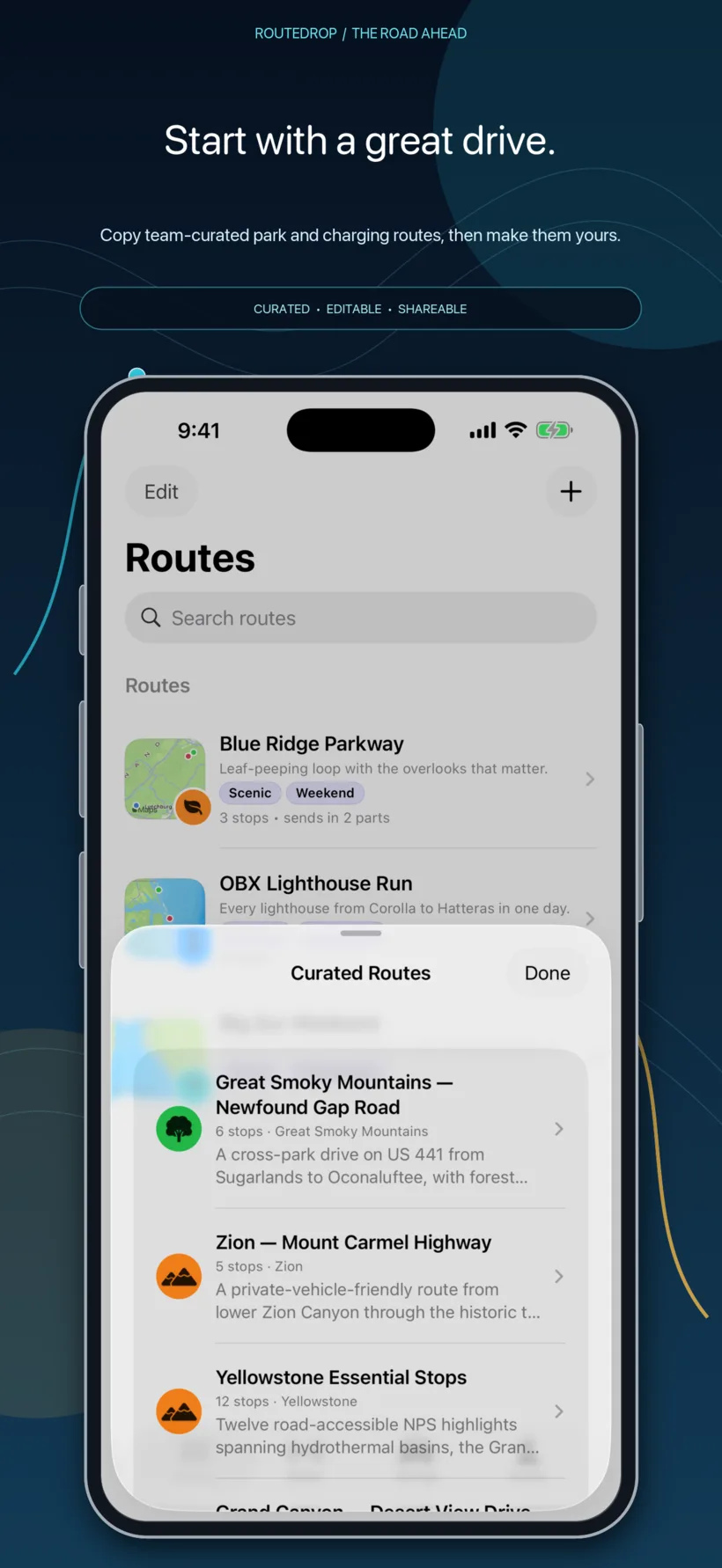
Start from a blank map, a link, a nearby surprise, or a RouteDrop-curated drive. Keep the result as a searchable, editable part of your library.
Search names, descriptions, labels, and stops. Favorite, reorder, reverse-duplicate, undo deletion, resume a draft, and organize routes with built-in or custom icons and colors.
Search a business, address, landmark, or place; tap or long-press the map; add current location; drag the stop order; optimize by drive time; and enable or disable stops without deleting them.
Group routes into a Trip with its own name, description, icon, color, and order. Routes remain independent and editable, and deleting a Trip never deletes its member routes.
Browse reviewed scenic and national-park routes with descriptions, sources, review dates, and CC0 offline hero images. Add an ordinary local copy, then edit, rename, duplicate, or share it.
Choose a radius and let RouteDrop build a randomized nearby route that favors local businesses while mixing in other places to explore. Review every result before saving or driving.
Browse locally served Tesla Supercharger and Rivian Adventure Network snapshots. See site name, host, stalls, maximum kW, hardware, access, hours, phone, and attribution when available—then add the site as a stop.
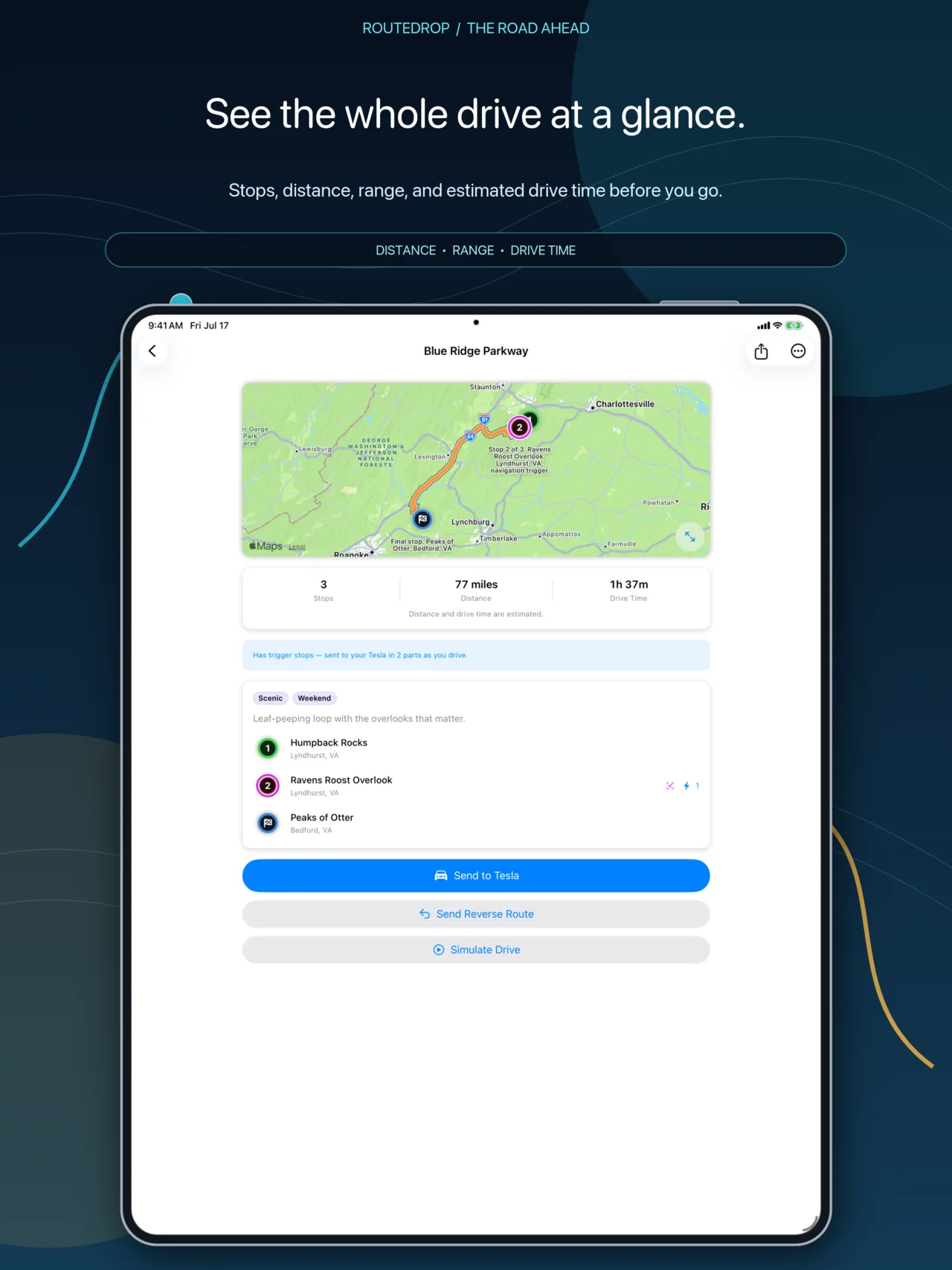
Enabled stops drive the estimated stop count, distance, and drive time. Route details show the route line and trigger circles; optional saved elevation and grade estimates support planning. Charging, elevation, road, time, and range values remain estimates—not live guarantees.
02 · Orchestrate
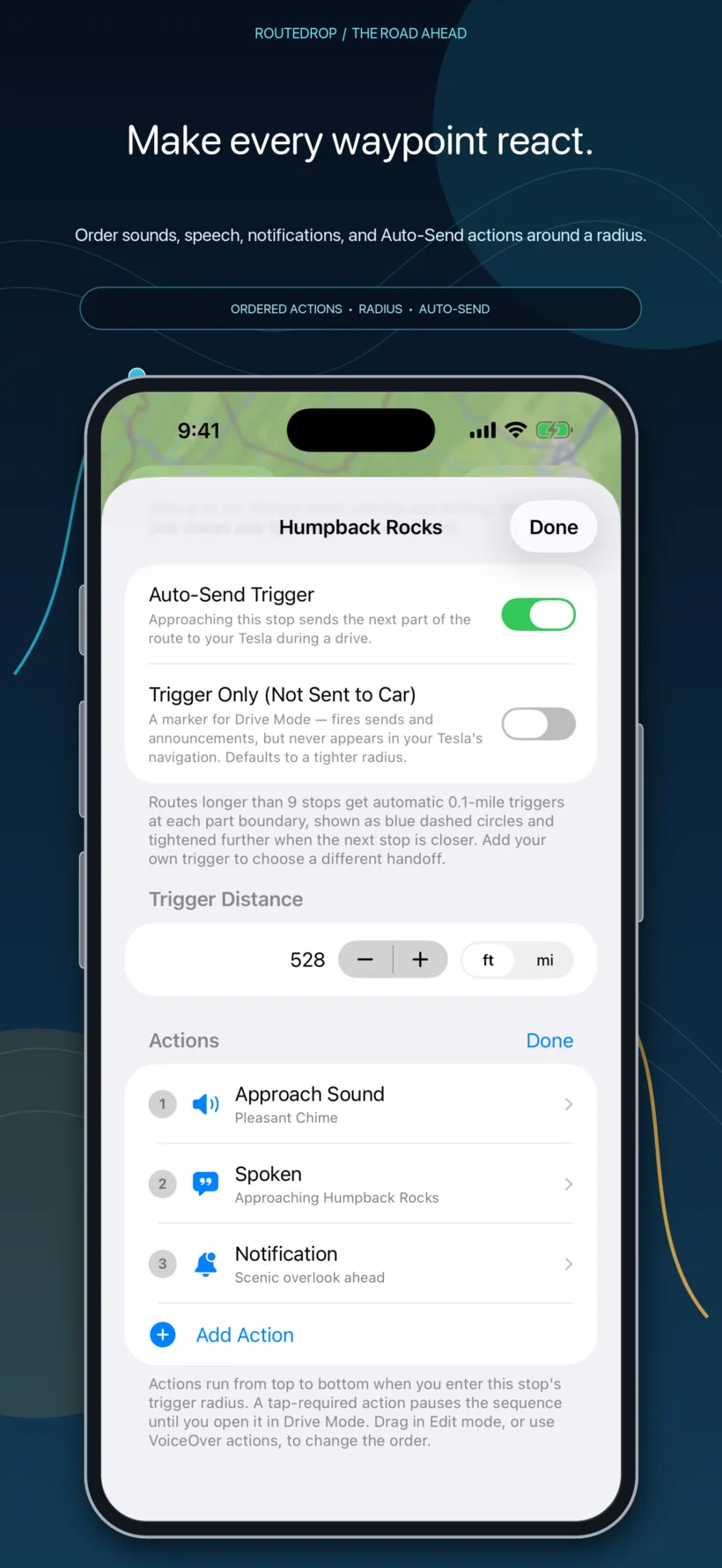
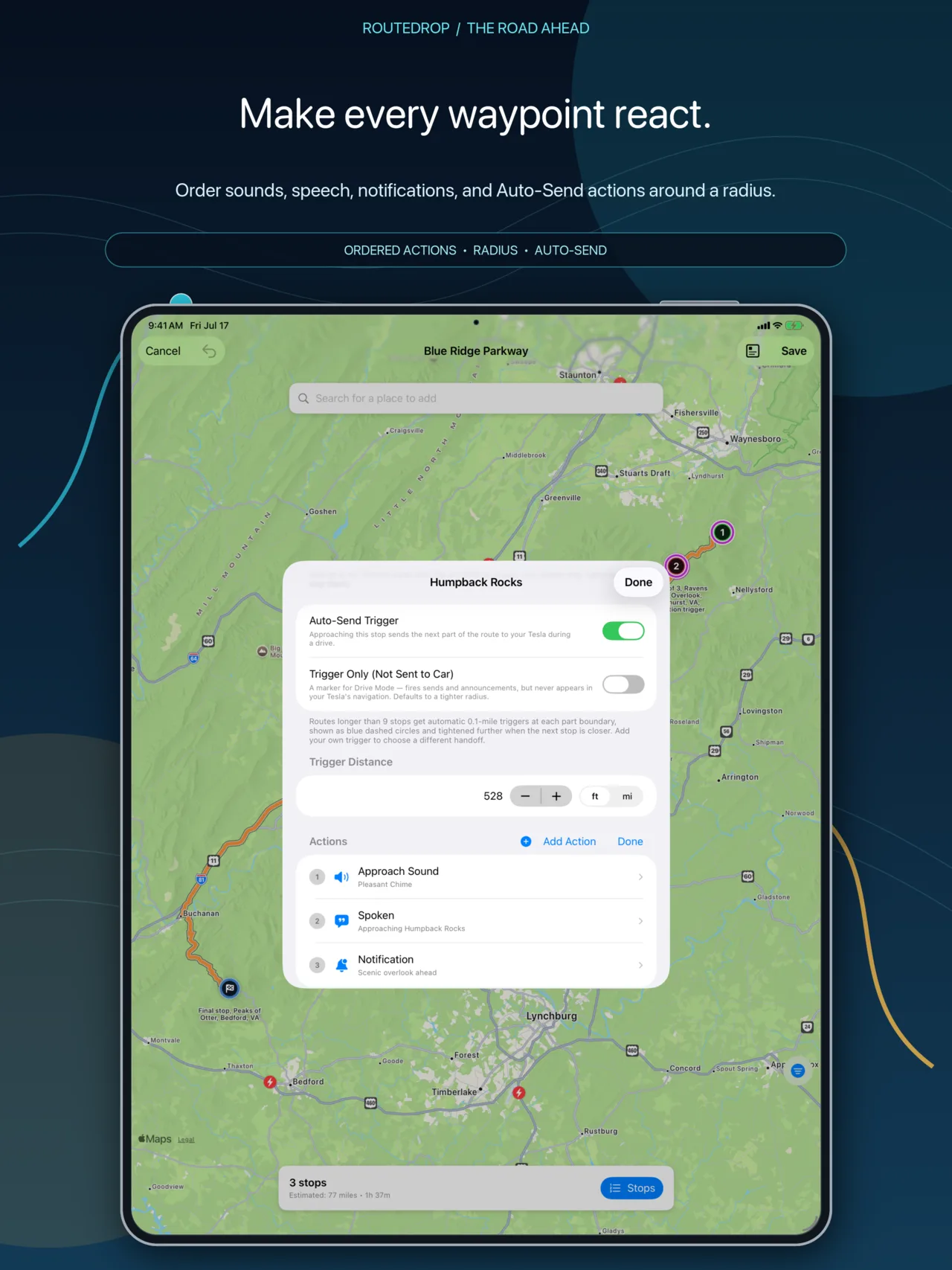
Each stop can carry context and a sequence of up to 16 enabled actions. RouteDrop runs them in order when Drive Mode reaches the trigger radius.
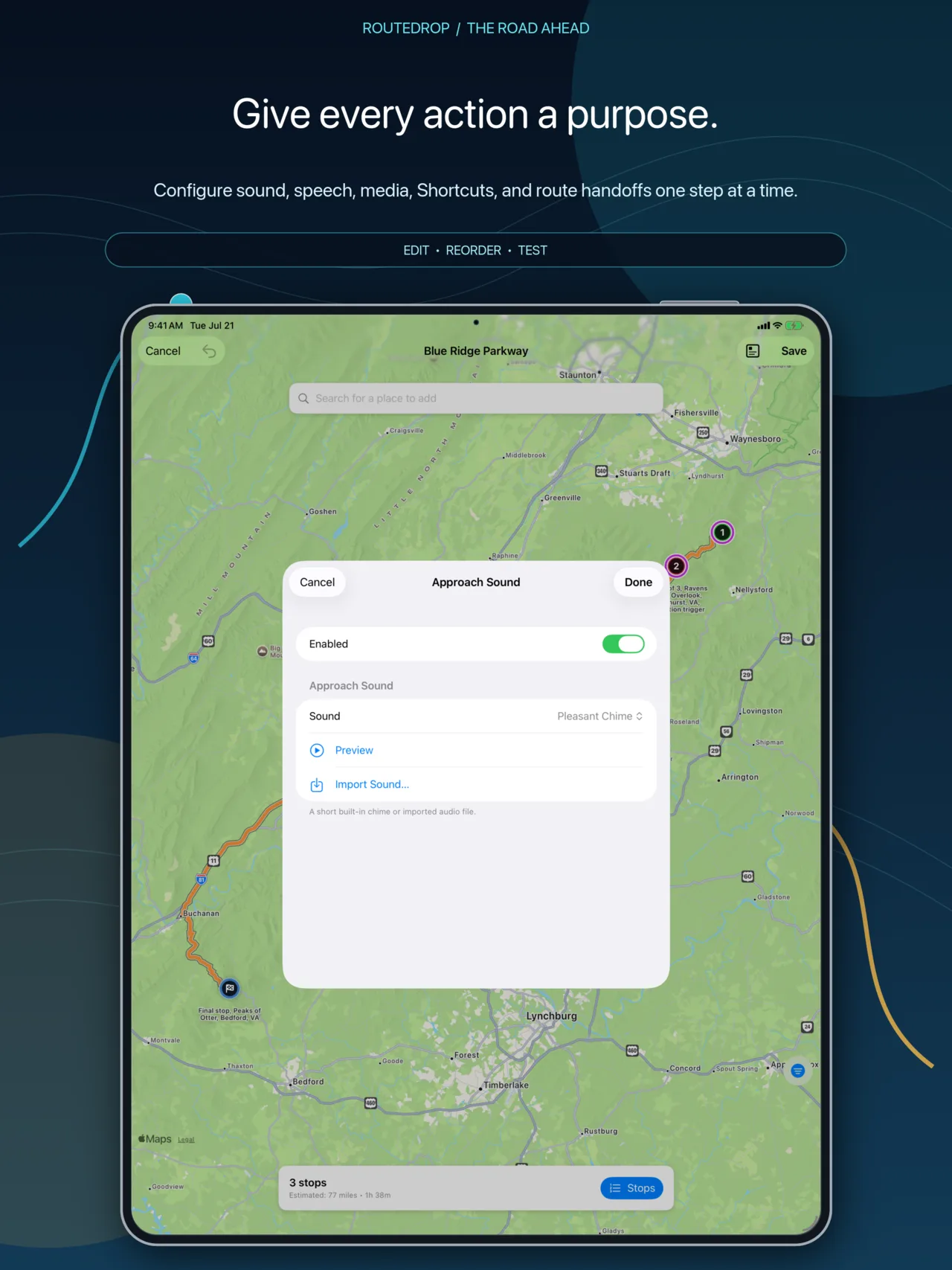
Normal stops default to a 0.5-mile radius. Drawn circles make the boundary visible on detail, edit, and simulator maps. Trigger-only markers can run actions without becoming navigation destinations; automatic route-part handoffs use a tight 0.1-mile radius bounded by the next stop.
Add notes, tags, and up to six offline photos. When RouteDrop confirms arrival, Drive Mode and the simulator present them together as an ordered arrival card.
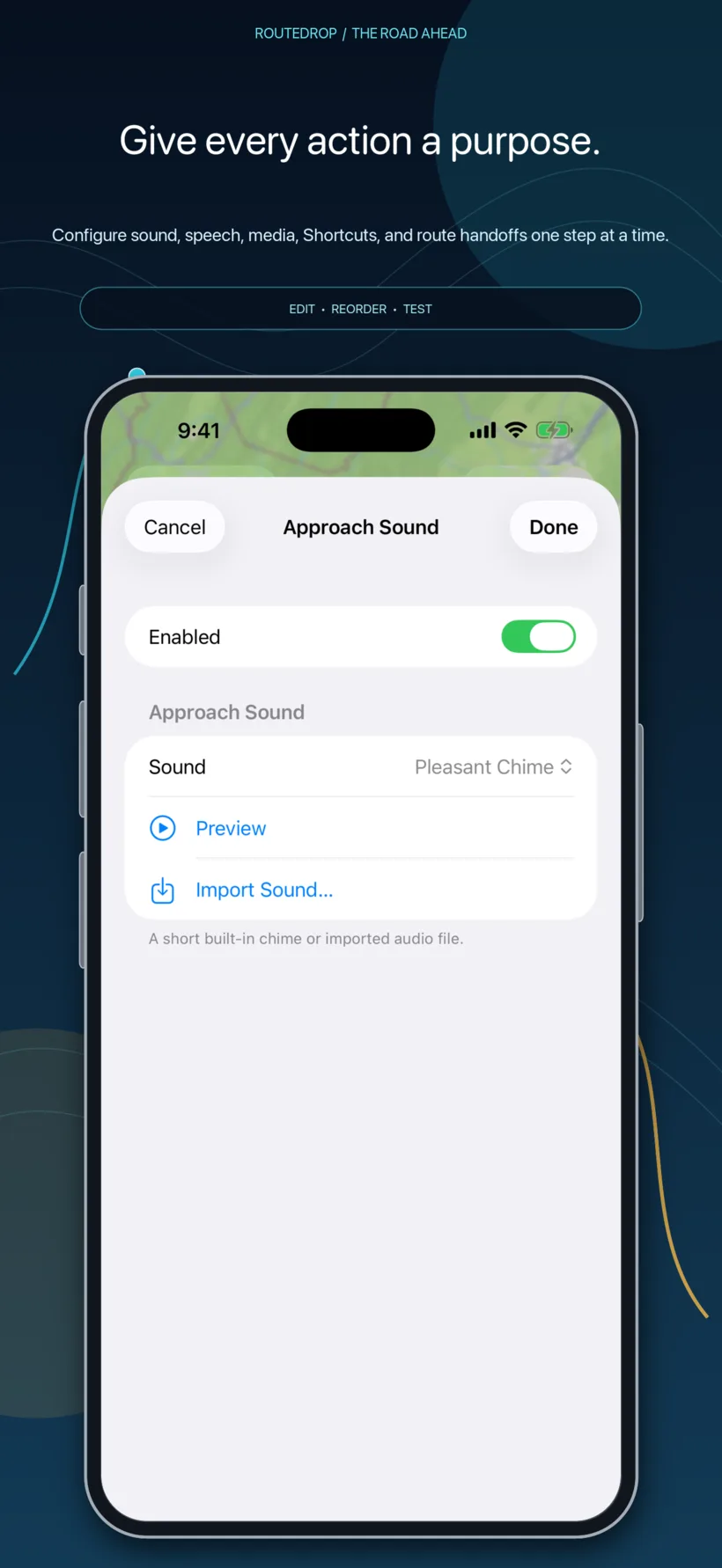
Play a bundled or imported chime, speak editable text with a system or Personal Voice, record audio, or import an audio/video file whose soundtrack plays during the drive.
Post a local notification; start Apple Music, Spotify, or YouTube content; pause RouteDrop-managed audio or Apple Music; and keep tap-required actions waiting until a passenger or safely parked driver opens them.
Name an Apple Shortcut to open from the Drive bar when its turn arrives. iOS requires a tap, so the action sequence pauses visibly instead of silently skipping ahead.
Chain routes loosely by name for replacements, loops, repeated routes, circular routes, and out-and-back trips. Full packages include reachable chained routes so the handoff survives sharing.
Reorder, enable, disable, or delete actions. Imported side-effect actions arrive paused for review. Replay Last Announcement repeats safe spoken or audio content, never an external app launch, notification, route change, or other side effect.
03 · Send & Drive
Connect through Tesla’s own sign-in, choose the exact vehicle, pair RouteDrop EV’s virtual key when required, and see the state of every real command.
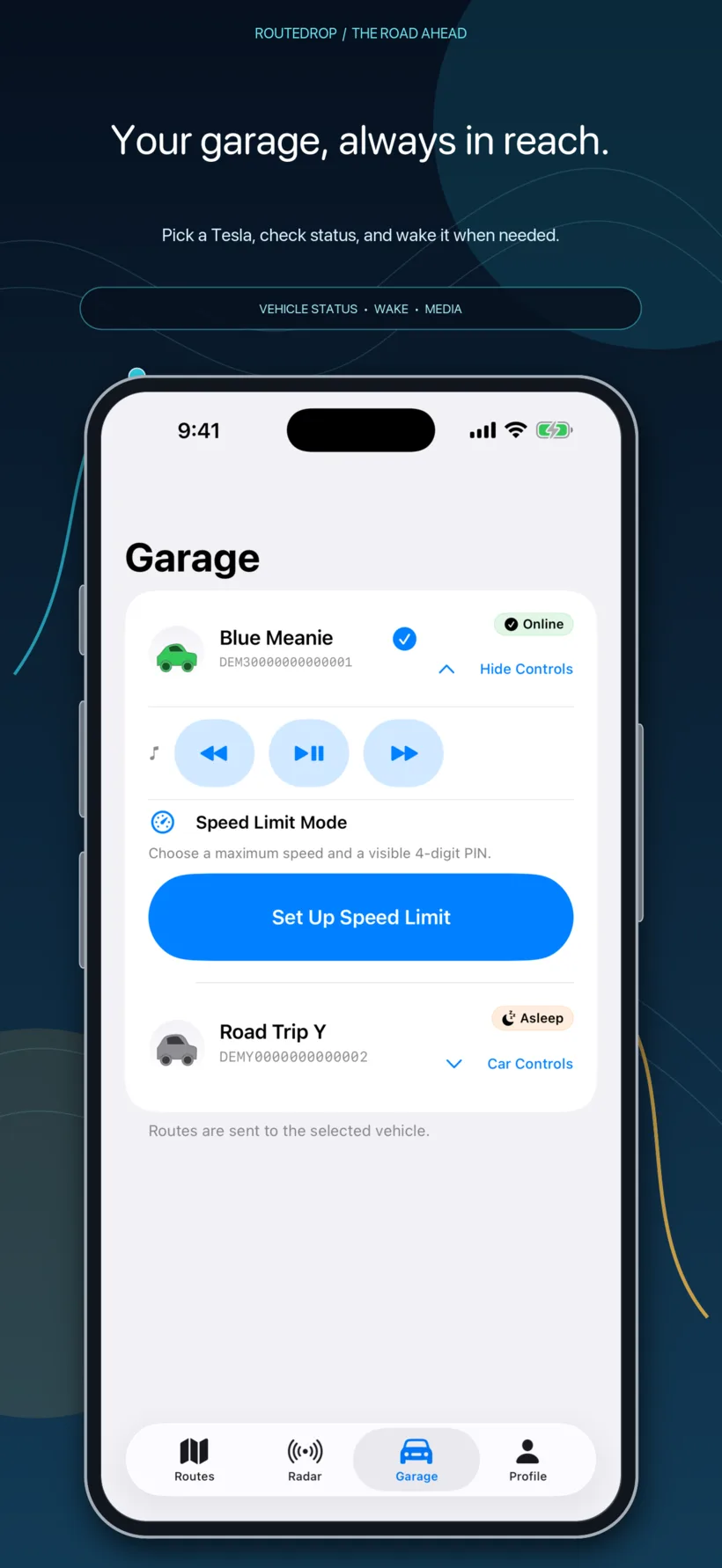
Select a vehicle, refresh connectivity and pairing, open the Tesla app for a free wake path, use an eligible Fleet API wake, and access explicit media previous, play/pause, and next controls.
Read the vehicle’s supported range, confirm Park, then stage and send an exact maximum. RouteDrop asks for the four-digit PIN only when Tesla needs it to enable, pause, edit an active cap, or remove the cap and PIN; the saved PIN is never displayed or prefilled.
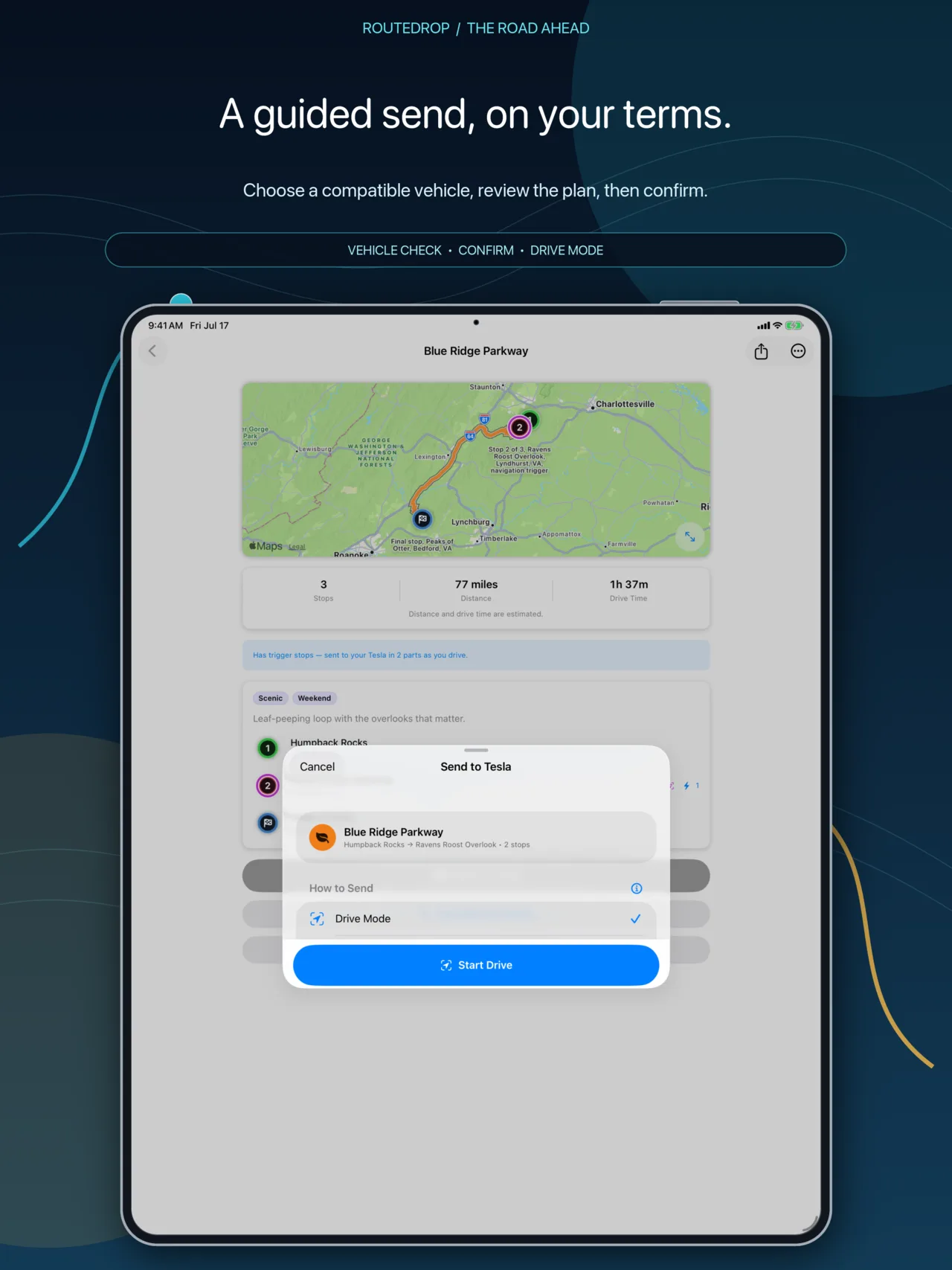
Drive Mode monitors the route and later parts. Round-Trip also prepares the reverse drive. Just Send sends once without monitoring triggers or approach actions.
RouteDrop sends ordered stops together and splits routes only when they exceed the vehicle limit. Persisted Place IDs, Plus Codes, and cached resolution reduce repeat preparation work.
Choose the vehicle, local clock time, and one-time or repeating behavior. Manage and cancel schedules from Profile; longer scheduled routes send their first part.
Follow wake, compatibility, secure connection, route preparation, progress, and Tesla confirmation. Duplicate-send confirmation, safeguards, and a visible cooldown help prevent accidental repeats after uncertain delivery.
The Drive bar shows the next stop, distance to it, the next-leg map, queued arrival cards, pending tap action, replay, mute, and End Drive. It preserves ordered trigger execution across supported background and lock-screen recovery, sends later route parts at their handoff, and records completed drives and supported charging stops.
04 · Rehearse
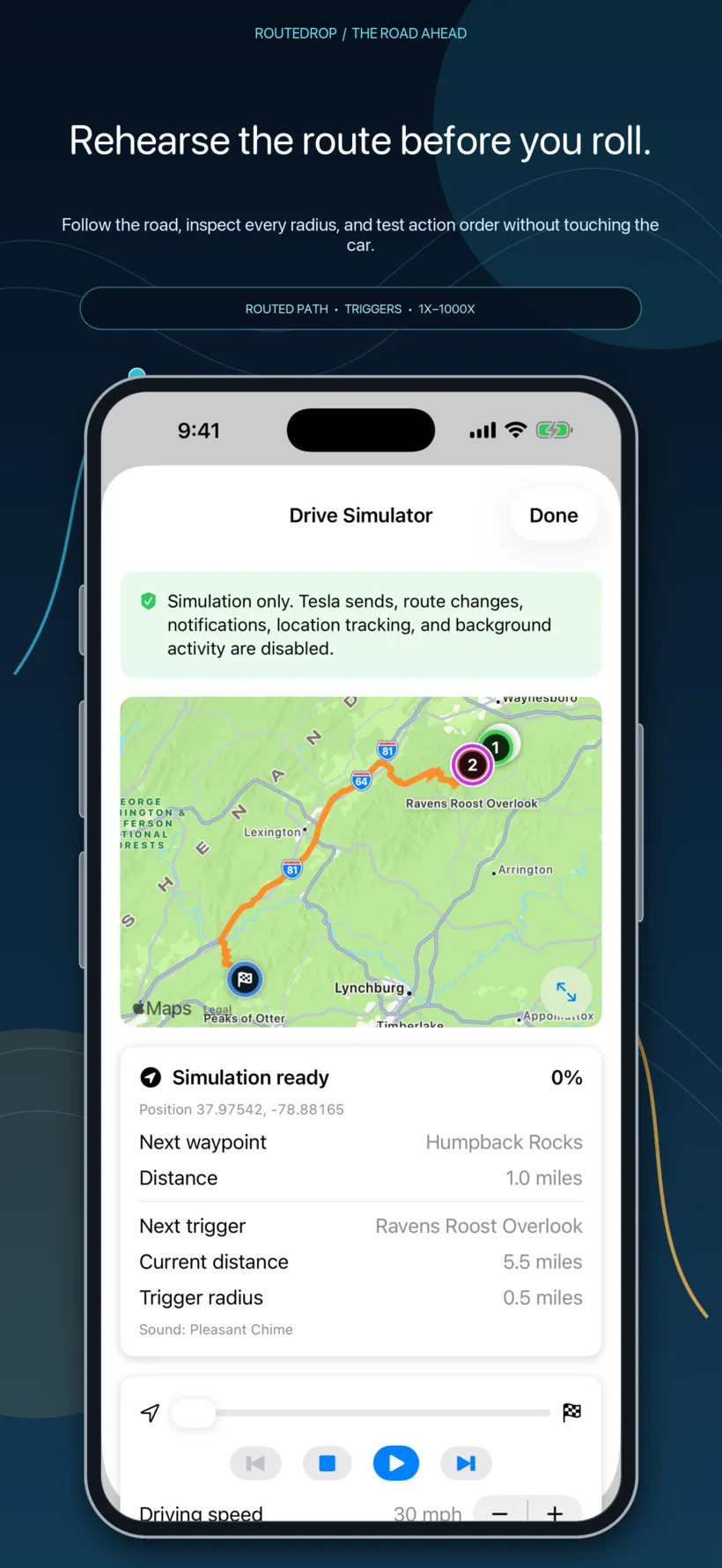
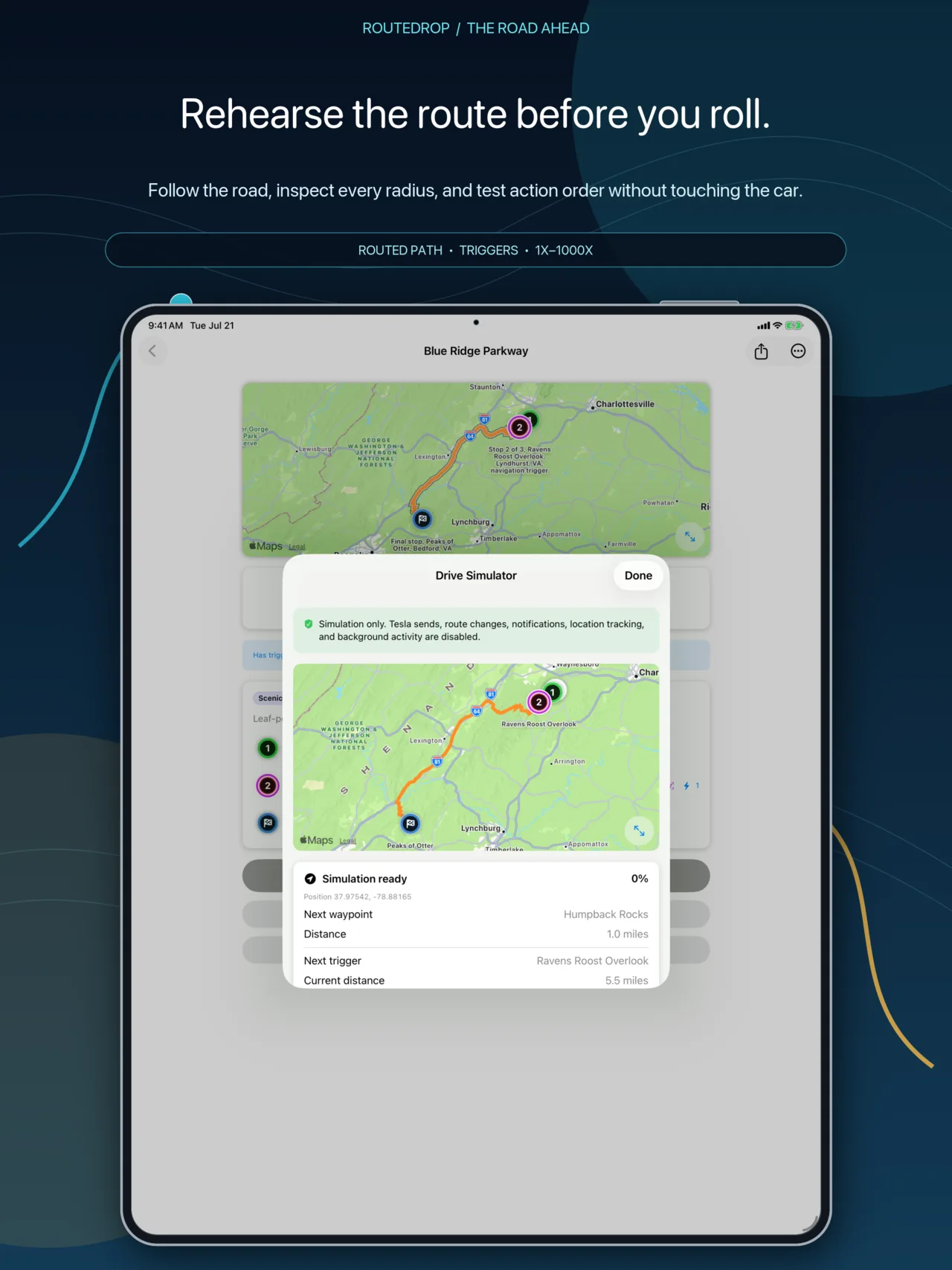
The Drive Simulator follows routed road geometry and begins before the first trigger, so the opening stop receives the same scrutiny as the last.
Play, pause, stop, jump to start or end, scrub, move backward or forward around triggers, and step the base speed in 5 mph increments.
Choose 1x, 2x, 5x, 10x, 100x, 500x, or 1000x. Stop rearms one-shot events without clearing the log; Clear Log removes only the displayed rehearsal history.
The map advances through each stop’s actual trigger circle. Overlapping and looping routes still fire actions strictly in route order, and Drive Would Complete logs only once per armed run.
Hear local speech and embedded Grok audio and preview arrival cards. Tesla sends, notifications, external apps, media control, Shortcuts, route switches, history, and background work are logged instead of performed.
05 · Bring it in. Send it out.
Move between mapping apps, friends, devices, and formats—then choose the kind of share that fits the trip.
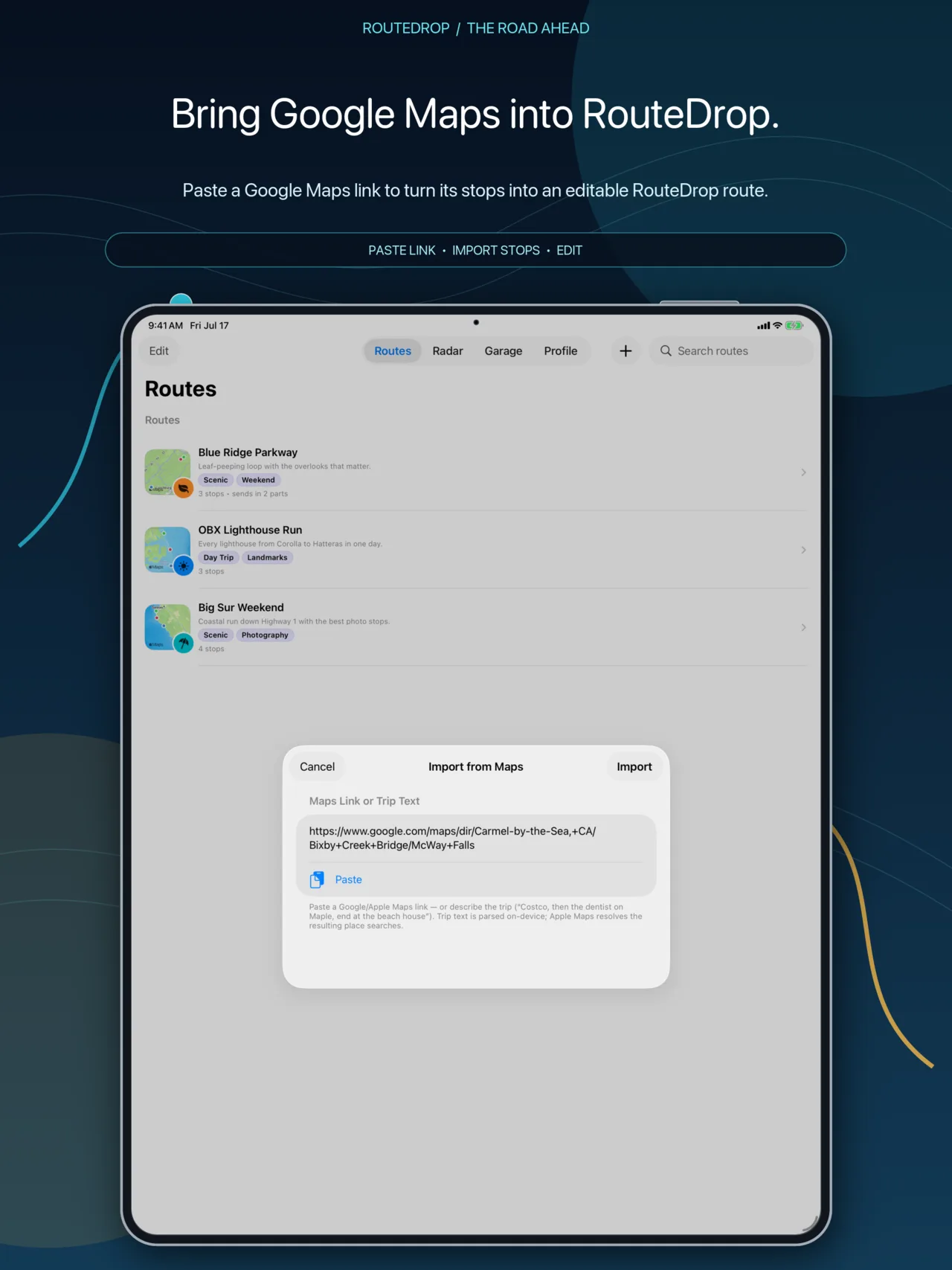
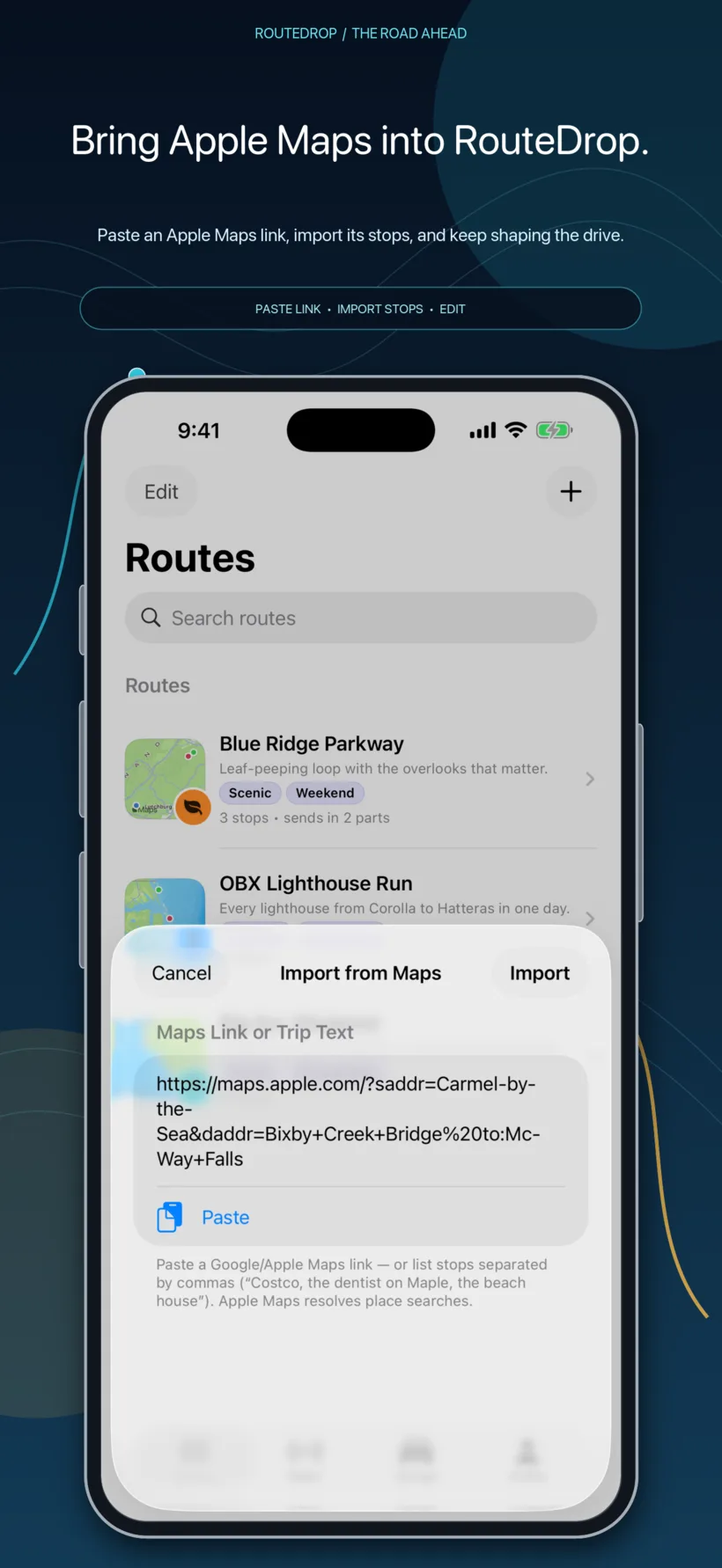
Paste supported Apple Maps and Google Maps links or route text. Use the iOS share extension from Maps, Safari, Messages, Trails Offroad, and other apps to queue links for RouteDrop.
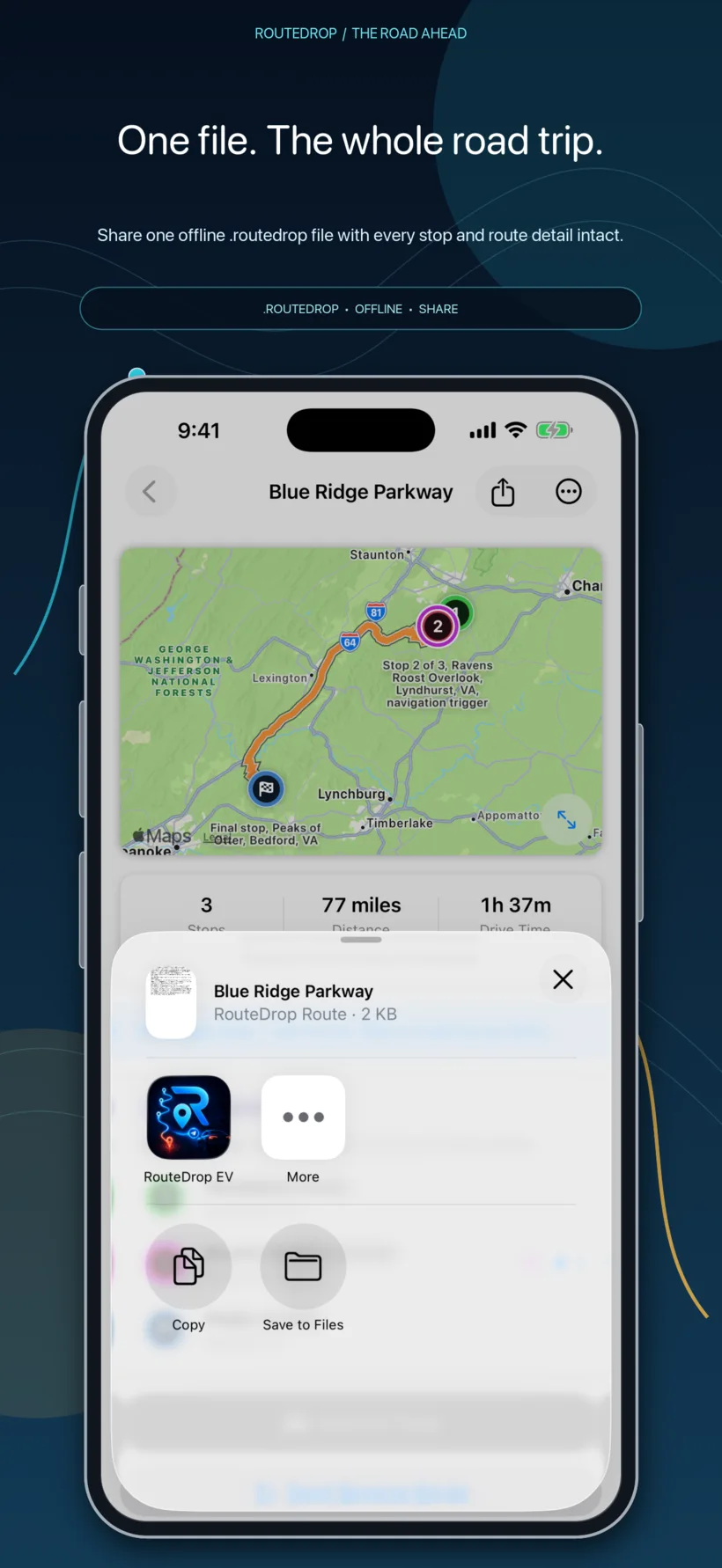
The .routedrop format preserves route or Trip structure, custom appearance, stop settings, photos, custom icons, curated artwork, compatible audio, generated Grok speech, and reachable route chains for offline use.
AirDrop or file-share a full package, or create a lighter unlisted web link when signed in. Imported service links include a report path. Use the full package when offline completeness matters.
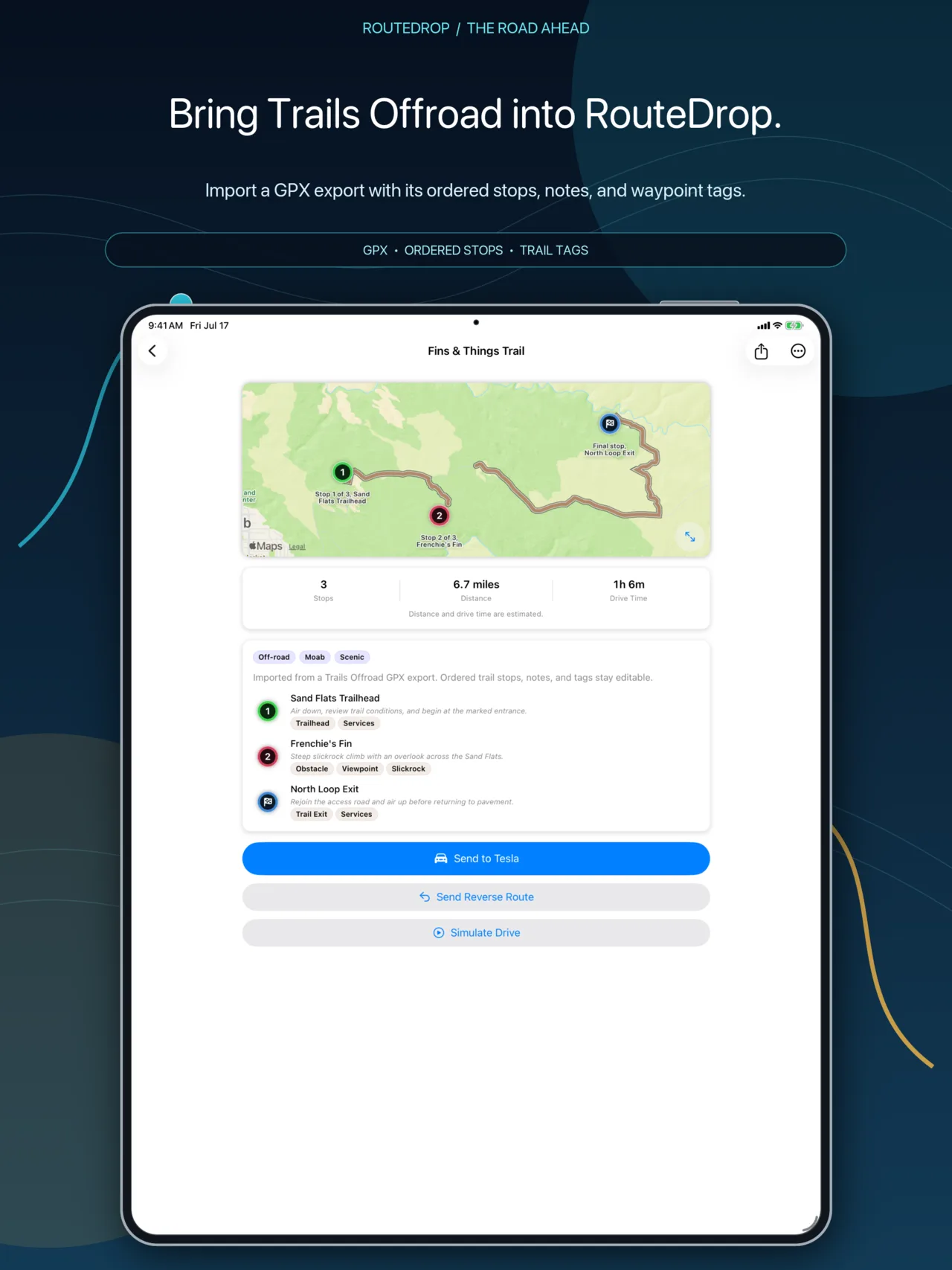
Import and export GPX for mapping interoperability. Prepare a full library backup from Profile, export it through the system share sheet, and restore routes and Trips later.
07 · Stories for the road
Generated features are explicit, reviewable, rate-limited, and backed by local speech when audio cannot arrive.
Ask for an interesting, web-grounded tidbit about a stop—not a reading of its address. RouteDrop saves the draft and research sources for review and never overwrites newer edits.
Select and preview a voice, add supported cadence effects, generate audio, and save the result inside the route package for offline playback and sharing. Saved text remains the system-speech fallback.
The optional Pro+ feature occasionally researches a bounded, rounded look-ahead during Drive Mode and tells you a short story about a landmark, town, or place ahead. It uses the selected Grok voice when available, falls back to local speech, yields to stop announcements, stays quiet when it has nothing worthwhile, and keeps the clip only for the active drive.
08 · Built into iOS and iPadOS
RouteDrop meets the system where road-trip planning actually happens: the Share sheet, Siri, Shortcuts, widgets, Live Activities, Files, and Profile.
Use Send Route and Create Route App Shortcuts. A send always asks before spending a send or waking a Tesla. Stop-triggered user Shortcuts remain explicit tap actions, while supported links and documents open the intended tab, route, Trip, or import flow.
Open a favorite route from the Home Screen. During Drive Mode, the widget becomes a compact local live map with route line, upcoming stops, trigger radii, current position, and readable distance to the next stop.
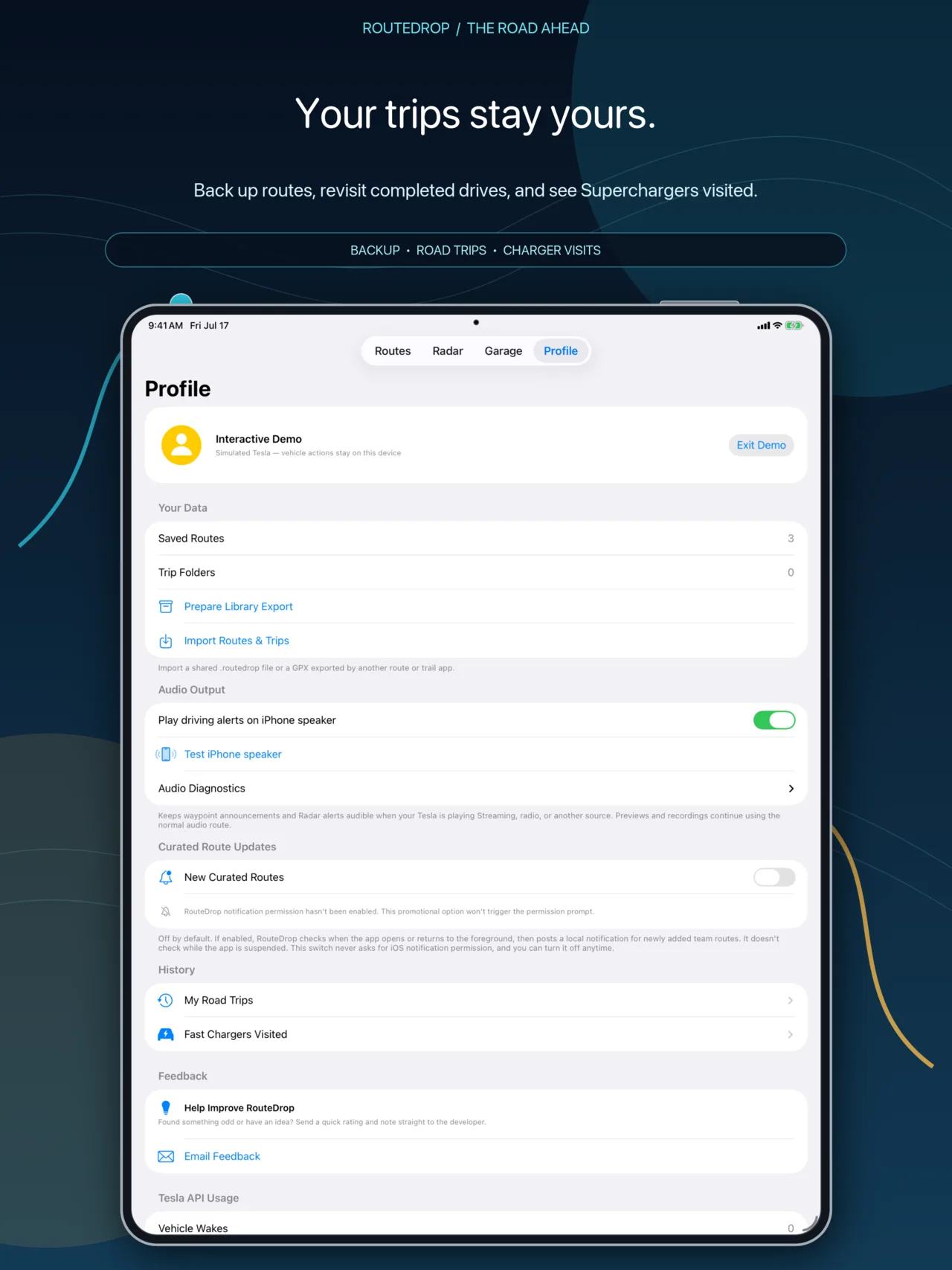
Export or restore the library, manage schedules, choose the app icon, compare plans, restore purchases, configure Live Drive and audio output, review usage estimates, send feedback, and control opt-in diagnostics.
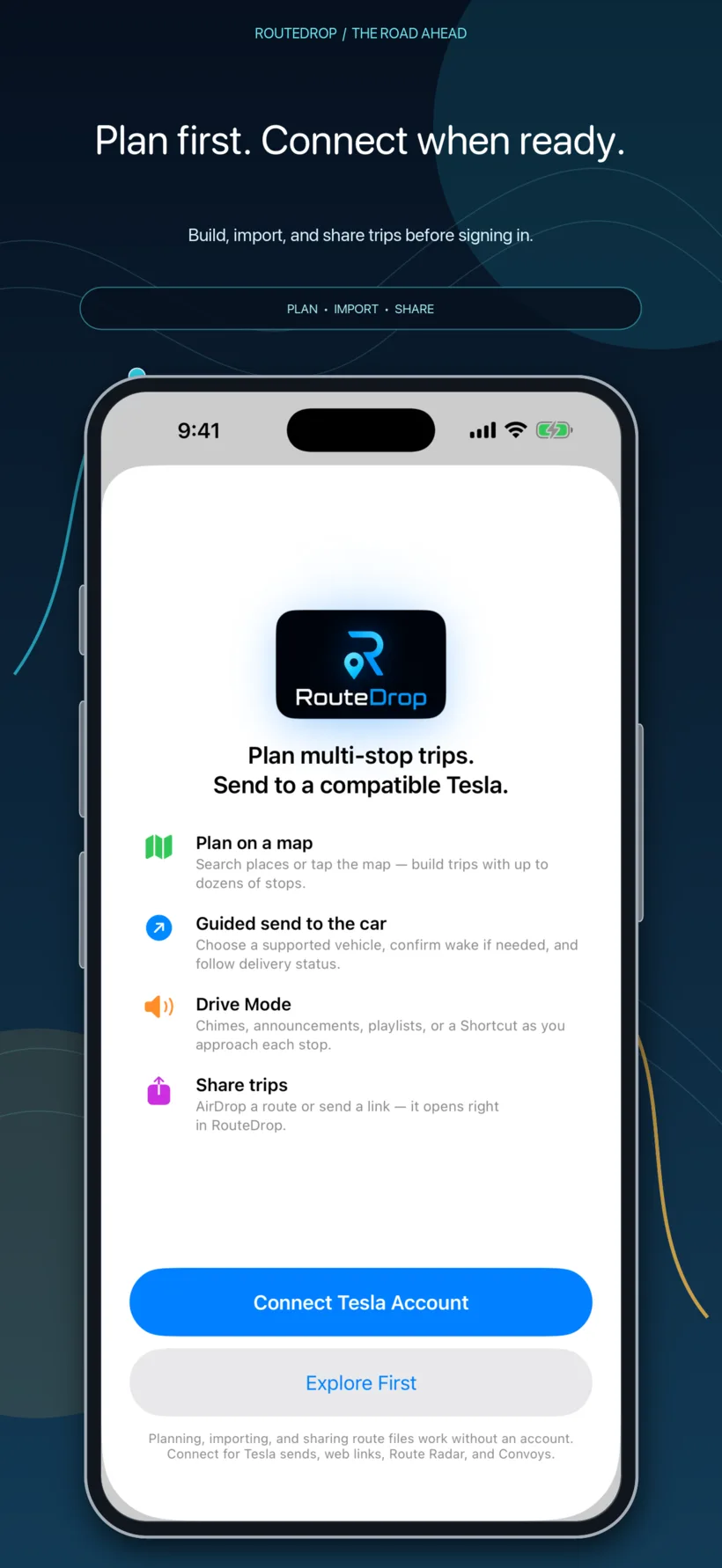
A replayable Getting Started guide explains guest planning, optional Tesla connection, exact vehicle selection, virtual-key pairing, location levels, notifications, and what Always Location changes before you enable it. Profile also keeps the isolated interactive demo available for exploration.
Profile is also where RouteDrop keeps completed-drive and charger histories, schedules, feedback, the app-icon chooser, plan comparison and restore, the bundled PDF guide, acknowledgements, splash artwork, version and build, Tesla Account GUID, logout, and data deletion. TestFlight builds additionally expose operational QA status and cost diagnostics.
Access that grows with the drive
RouteDrop 1.0 launches with a useful Free plan and three optional monthly subscriptions. The prices below are U.S. reference prices; Apple’s in-app purchase sheet shows the authoritative localized price and renewal terms before purchase.
Local planning, route and Trip organization, importing, package sharing, simulation, interactive demo, and up to 10 Tesla route sends each month.
Scheduled and recurring routes, eligible wake-and-send behavior, and up to 150 Tesla route sends each month.
Everything in Plus, plus Drive Mode, stop actions, Route Radar, Convoys, Write with Grok, and Spoken with Grok announcements.
Everything in Pro, plus optional Live Drive with Grok narration during an active route.
Subscriptions renew automatically unless canceled at least 24 hours before the end of the current period. Purchase, restore, manage, or cancel through Apple from RouteDrop’s Profile.
Ready to map it out?
06 · Find your people
Two ways to share the road.
Radar is coarse and nearby. Convoys are precise and invited. Both are opt-in, and neither uses your Tesla account name as your public identity.
Route Radar
Choose a handle, vehicle model, and color. See qualifying coarse nearby presence, direction of travel, the active route while driving, proximity pings, and six different waves without publishing an exact trail. Keep the screen awake while selected, or mute, block, and report when needed.
Private Driver Log
Review recent handles, first and latest seen times, and received waves in bounded protected storage on this iPhone. Clear it any time; mute, block, and report controls remain available.
Convoy rooms
Create, share, or join with a code, name the group, and separately consent before sharing precise location in that room. Leave at any time; leaders can disband, and abandoned rooms expire after 24 hours. Positions disappear with the live session.
Map, route, pings, and chat
See directional vehicles, optional speed/stopped/update-age details, roster, seven quick pings, a leader-selected shared route you can save or send to your own car, and bounded live text chat with reporting and blocking.
Designed around explicit presence
Radar can continue while its tab remains selected across normal app switching and lock, then reconnects when the experience resumes. Convoy location sharing is foreground-only; a privacy-safe Live Activity provides a quick return. Convoy voice is not included in the current release.